Decorate a contact and choose from 30 color themes
Give a contact their own decoration and color, so you can tell people apart at a glance. The preview shows your choice before you save.
Steps
Turn on Use CallPalette in the app's Settings first if it is off.
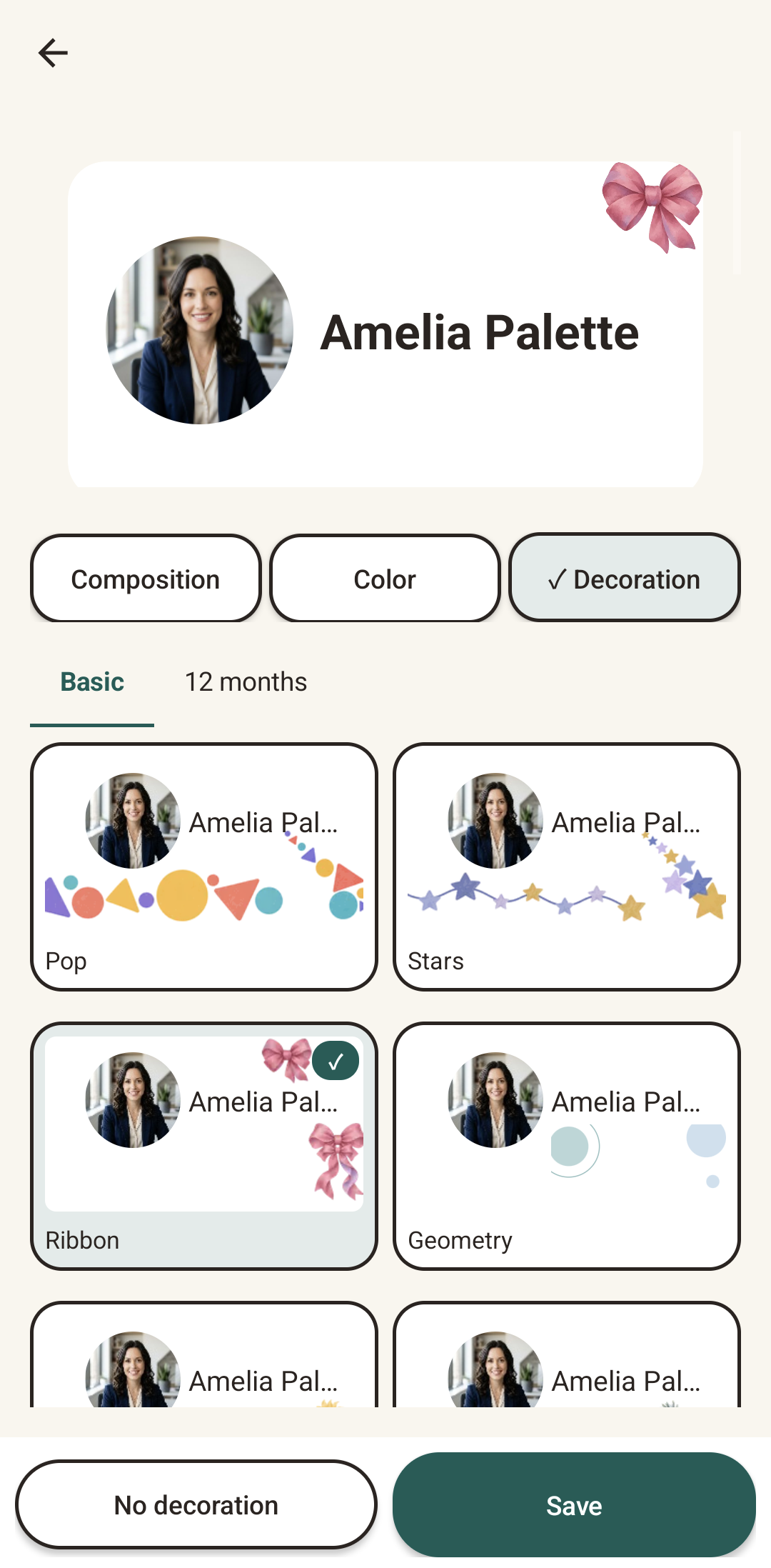
Choose a decoration
Open the contact, tap the ⋮ menu and choose Customize appearance. On the Decoration tab, pick a decoration from Basic or 12 months; the preview at the top shows it.
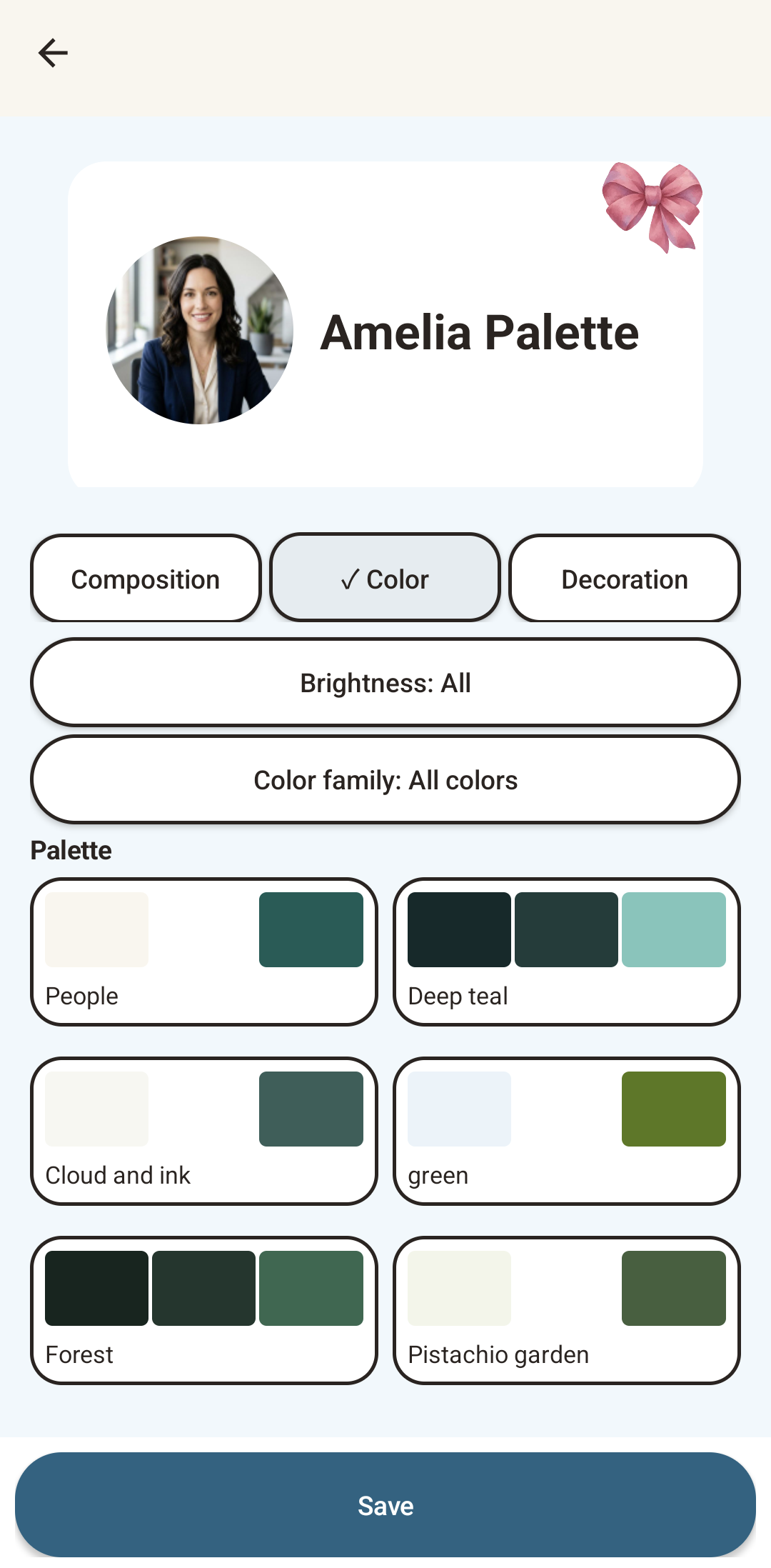
Pick a color and save
Open the Color tab and choose one of the 30 color themes. You can narrow the list with Brightness (All, Light, Dark) and Color family (All colors, Neutral, Warm, Green, Blue, Purple, Teal). Tap Save to apply it.
Real Android screens using a test contact.
A few things to know.
How many color themes are there?
30. You can narrow the list by brightness (light or dark) and by color family: neutral, warm, green, blue, purple or teal.
Does changing a color change the contact's photo or notes?
No. Changing the color changes the background and the call buttons only. The photo, the decoration and the notes stay as they are.
Does it change other contacts?
No. A color picked for one contact applies to that contact only.
More guides: birthday celebration on a contact's screen · save a Google Maps place · all guides
CALLPALETTE
Your people.
Your palette.
A familiar face, a favourite shade, and the places you want to remember.
Get it on Google Play